Your first transcription
The window
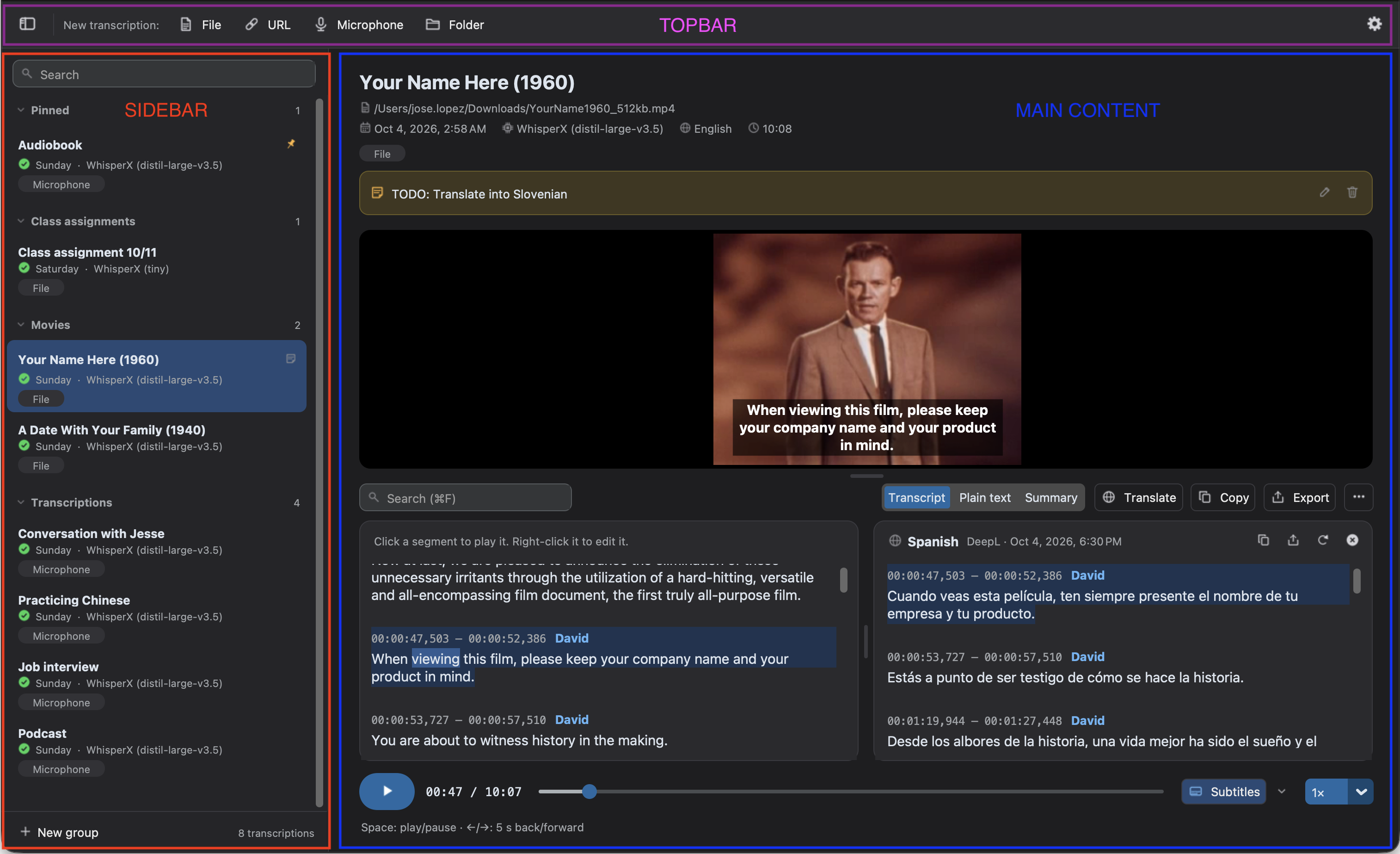
Section titled “The window”The window of Audiotext has three parts:
- The top bar: the buttons to start a New transcription from a File, a URL, the Microphone or a Folder, the status of the app, and the gear that opens the Preferences. The button on the left shows or hides the history.
- The history, on the left: all your transcriptions, which you can search, pin, group and rename. See History.
- The main area: the source you’re setting up, the progress of a transcription, or the transcription you selected in the history.
When you open the app, the main area asks What do you want to transcribe? and shows a card for each kind of source.
Transcribe a file
Section titled “Transcribe a file”-
Click File in the top bar (or press
Ctrl+O,⌘Oon macOS) and choose an audio or video file, or drop it on the window. Then click Continue. -
Review the settings. The defaults work well for most audios:
- Engine: WhisperX, which runs on your computer. Choose a smaller Model (such as
small) if your computer is slow. - Language: the Language of the audio is detected automatically. Choose it if you know it, to avoid mistakes. To translate, choose another Language of the transcription.
- Context and Options: optional hints and features, such as identifying the speakers.
See Transcription settings for all of them.
- Engine: WhisperX, which runs on your computer. Choose a smaller Model (such as
-
Click Start transcription (or press
Ctrl+Enter,⌘↩on macOS).
The progress of each step (loading the model, transcribing, aligning the words…) is shown while it works. You can keep using Audiotext meanwhile: the result is saved in your history and opens when it’s ready. To cancel it, click Cancel or press Esc.
If another transcription is in progress, the button becomes Add to queue, and the new one starts when the current one finishes.
Read and use the result
Section titled “Read and use the result”When it finishes, the transcription opens:
- Click a segment to play the audio from there.
- Switch between Subtitles, Plain text, Summary and Ask, to ask questions about it.
- Use Translate to translate it, and the buttons of the header of the transcription to find and replace in it, copy it or save it as a file.
- Review the underlined words, which the engine is least sure of.
See The transcript to learn everything you can do with it.
Keyboard shortcuts
Section titled “Keyboard shortcuts”| Shortcut | Action |
|---|---|
Ctrl+Enter / ⌘↩ |
Start the transcription, or start and stop recording |
Ctrl+O / ⌘O |
Choose a file (or a folder, in the folder source) |
Ctrl+S / ⌘S |
Export the text you’re working on: the transcription or its translation |
Ctrl+F / ⌘F |
Find and replace in the text you’re working on (or find in the summary) |
Ctrl+J / ⌘J |
Go to the next low-confidence word |
Shift+Ctrl+J / ⇧⌘J |
Go to the previous low-confidence word |
Esc |
Cancel the transcription in progress (or clear the selected files of a folder) |
Ctrl+A / ⌘A |
Select all the files shown of a folder |
Enter |
Open the selected file of a folder |
Space |
Play or pause the audio |
← / → |
Go back or forward 5 seconds |