

The transcript
Select a transcription in the history to open it. The toolbar switches between four modes, Subtitles, Plain text, Summary and Ask, and has the Translate button and the ⋯ menu.
The transcription is shown in a card titled with its language. The buttons of its header find and replace in it, copy it, export it and Transcribe again (which asks first, since the corrections of its text are lost).
Subtitles
Section titled “Subtitles”Shows the transcription split into the subtitles of the video, with when each one starts and ends and, if the speakers were identified, its speaker. Their length follows the subtitle preferences.
The times are shown to the millisecond, like the subtitles (00:01:05,900 – 00:01:09,350), by default. To simplify them (01:05 – 01:09), uncheck Precise timestamps (HH:MM:SS,mmm) in the ⋯ menu.
Above the subtitles, a line counts them and, if the speakers were identified, the speakers (e.g. Subtitles: 120 · Speakers: 3). A long segment split into several subtitles counts as several.
Timestamps are only available with WhisperX and the whisper-1 and gpt-4o-transcribe-diarize models of the Whisper API. Without them, the transcript can’t be played subtitle by subtitle; use the Plain text mode instead.
Play the audio
Section titled “Play the audio”- Click a subtitle to play the audio from there. The subtitle being played is highlighted and kept in the middle of the text. With word-level timings, each word is highlighted too.
- Use the player bar to play, pause, move to any point and change the speed, from
0.5×to2×, keeping the pitch of the voices. - Keyboard shortcuts:
Spaceplays or pauses, and←/→go back or forward 5 seconds.
If the source file was moved or deleted, the audio isn’t available, but the text still is. Recordings from the microphone are kept by Audiotext, so they can always be played.
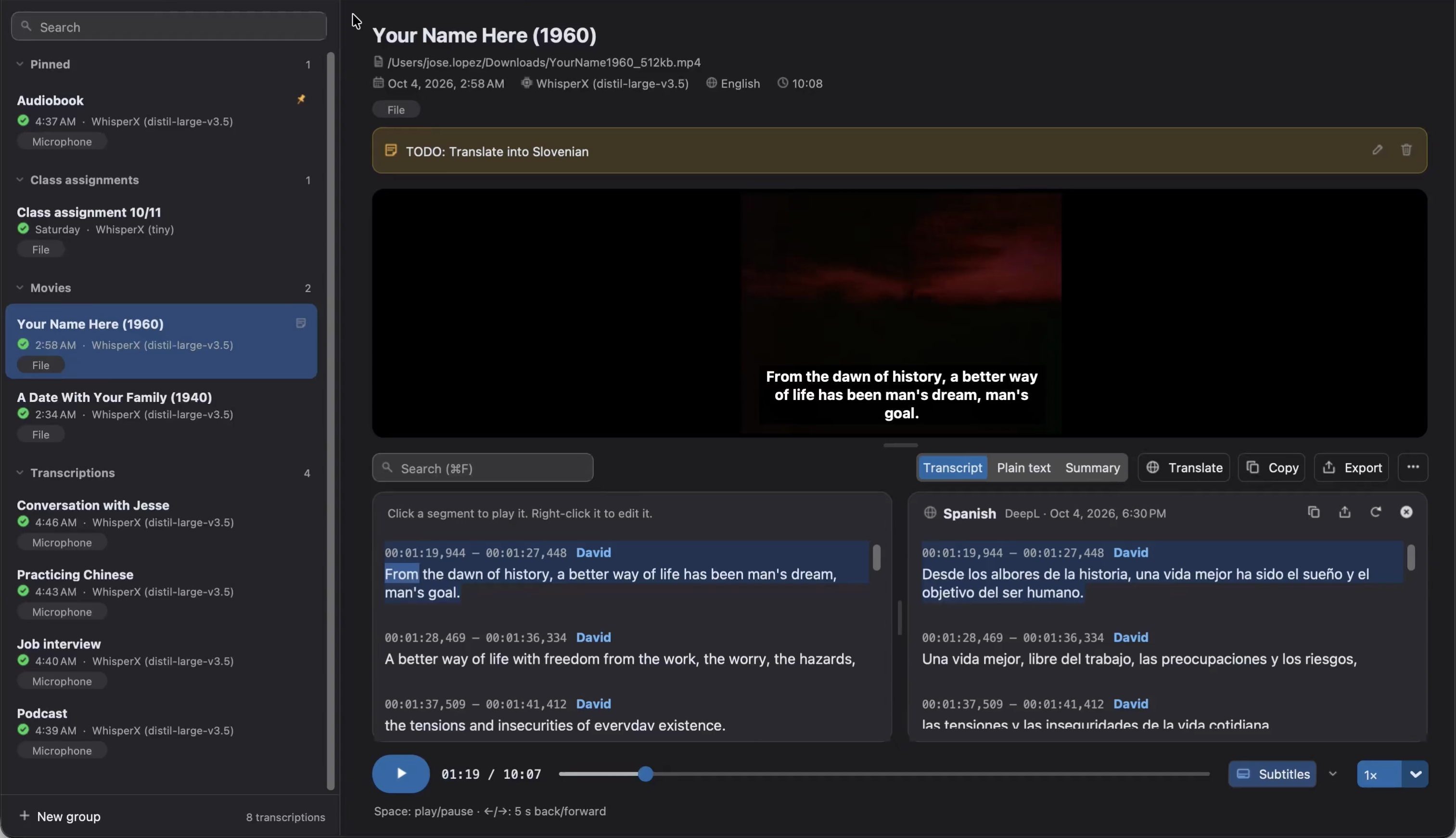
Watch videos with subtitles
Section titled “Watch videos with subtitles”The transcriptions of videos show the video above the text. Its menu lets you Show subtitles on the video, and choose their Size (small, medium or large), Position (bottom or top) and Style (dark background or outline). If the transcription has translations, the menu also chooses whether the subtitles show the Transcription or the Translation into… a language. The Subtitles button of the player bar also shows or hides them, and the arrow next to it opens the same menu.
Find and replace
Section titled “Find and replace”Press Ctrl+F (⌘F on macOS), or click the magnifying glass of the header, to open the window to find and replace in the text you’re working on: the transcription or its translation. It finds the text as you type it (the timestamps and the speakers aren’t searched) and shows how many matches there are.
EnterandShift+Enter, or the arrows, go to the next and previous matches.- Replace replaces the current match, and Replace all all of them, e.g. a name that was spelled wrong. Check Match case to only find the text with the same capital letters.
- The window isn’t modal, so you can read and play the text while it’s open. Stay on top keeps it above the main window.
Esccloses it.
In the Plain text mode, the window only finds (Find in the transcription), since a match there can’t be traced back to a subtitle. Switch back to Subtitles to replace.
Correct the transcription
Section titled “Correct the transcription”To correct the transcription while keeping its timestamps (which the subtitles and the playback use), use the Find and replace window, or right-click a subtitle:
- Play from here: plays it.
- Copy: copies its text.
- Edit text…: changes its text.
- Rename speakers…: gives a name to each speaker (
SPEAKER_00→Ana). Giving two speakers the same name merges them. It’s also in the⋯menu.
The words that don’t change keep their timings, so they’re still highlighted while playing.
Review the low-confidence words
Section titled “Review the low-confidence words”The words that the engine is least sure of are underlined, so you know where to proofread first. WhisperX scores each word when it times the words (Word-level timings, on by default), and the whisper-1 model of the Whisper API scores each segment, so its segments are underlined whole.
A bar above the text shows how many words are left to review (e.g. 3 of 12 to review):
- Its arrows, or
Ctrl+JandShift+Ctrl+J(⌘Jand⇧⌘Jon macOS), go to the next and previous words, and move the player to them. With Auto-play, each word is played with a moment around it. Enteraccepts the word you went to as it is, and goes to the next one. Accept remaining accepts all the words left, and Undo undoes the last review.- Click a word to correct it in place: type the correct text and press
Enter(or Accept it unchanged). Replay (Ctrl+R,⌘Ron macOS) plays it again, andEsccloses it. - Only flagged shows only the subtitles with words to review.
- The words are also marked under the position of the audio. Click a mark to go to its word.
When all are reviewed, Review accepted words again brings back the words you accepted. The corrected words stay reviewed.
The words are underlined when they score below 40%. Choose another threshold, from 20% to 70%, in ⋯ → Low-confidence threshold, or from Adjust threshold in the bar. To stop underlining them and hide the bar, uncheck Highlight low-confidence words in the ⋯ menu.
If a transcription has no scores, the ⋯ menu says why: Turn on “Word-level timings” and transcribe it again, There is no alignment model for its language, Transcribe it again to score its words (it was made before the words were scored) or Only WhisperX and whisper-1 score the words.
Plain text
Section titled “Plain text”The Plain text mode shows the text of the transcription without timestamps. It’s built from the subtitles, so it’s read-only, as the note next to the modes says: to change it, correct the subtitles, and the plain text follows them. This way, every export and translation uses the same text.
The transcriptions without timestamps (e.g. from the Google API) have no subtitles, so their plain text can be edited freely, like in a text editor. The changes are saved automatically.
Copy and export
Section titled “Copy and export”The copy button of the header copies the text of the transcription.
The export button (or Ctrl+S, ⌘S on macOS) saves it as:
| Format | Contents |
|---|---|
JSON (.json) |
The text, the segments with their timestamps, words and speakers, and the summary, if any |
Markdown (.md) |
The summary, if any, and the text in paragraphs with the timestamp and the speaker of each one |
Plain text (.txt) |
The text |
Styled subtitles (.ass) |
Subtitles with a color for each speaker, for video players and editors |
Subtitles (.srt) |
Subtitles for video players |
Table (.tsv) |
One row per segment, with its start and end (in milliseconds) and its text |
Web subtitles (.vtt) |
Subtitles for the web |
Word document (.docx) |
The same as Markdown, ready to edit or print |
The subtitles and the table need timestamps. The translations and the summary are exported from their own panels.
Export the video with its subtitles
Section titled “Export the video with its subtitles”To share a video where subtitle files can’t be loaded (e.g. a social network), choose Video with subtitles (.mp4)… in the export menu of the transcription, or of a translation. Audiotext makes a copy of the video with the subtitles drawn on it, as they’re shown in the app: with their size, position and style (see Watch videos with subtitles).
It’s made in the background, and the status shows its progress. To cancel it, choose Stop adding the subtitles to the video in the same menu. The copy is an MP4 file (H.264 video and AAC audio), and the original video isn’t changed.
If no font of your system has some characters of the subtitles, they’re drawn as boxes, and Audiotext lists them when it finishes. See Troubleshooting.
Rename, tag and add notes
Section titled “Rename, tag and add notes”The header of the transcription shows its name, source, date and tag. Double-click the name to rename it, click the tag to change it, or click Add note to write a note about it. Click the note, or its pencil, to edit it, and its trash can to delete it.
The ⋯ menu also has these options, and opens the folder of the source file or the folder of the saved files. More options are in the history.