Summary, questions and translation
Once a transcription is ready, Audiotext can summarize it, answer questions about it and translate it with a language model or a translation service. All of them are kept in the history, so they’re only generated once.
Summary
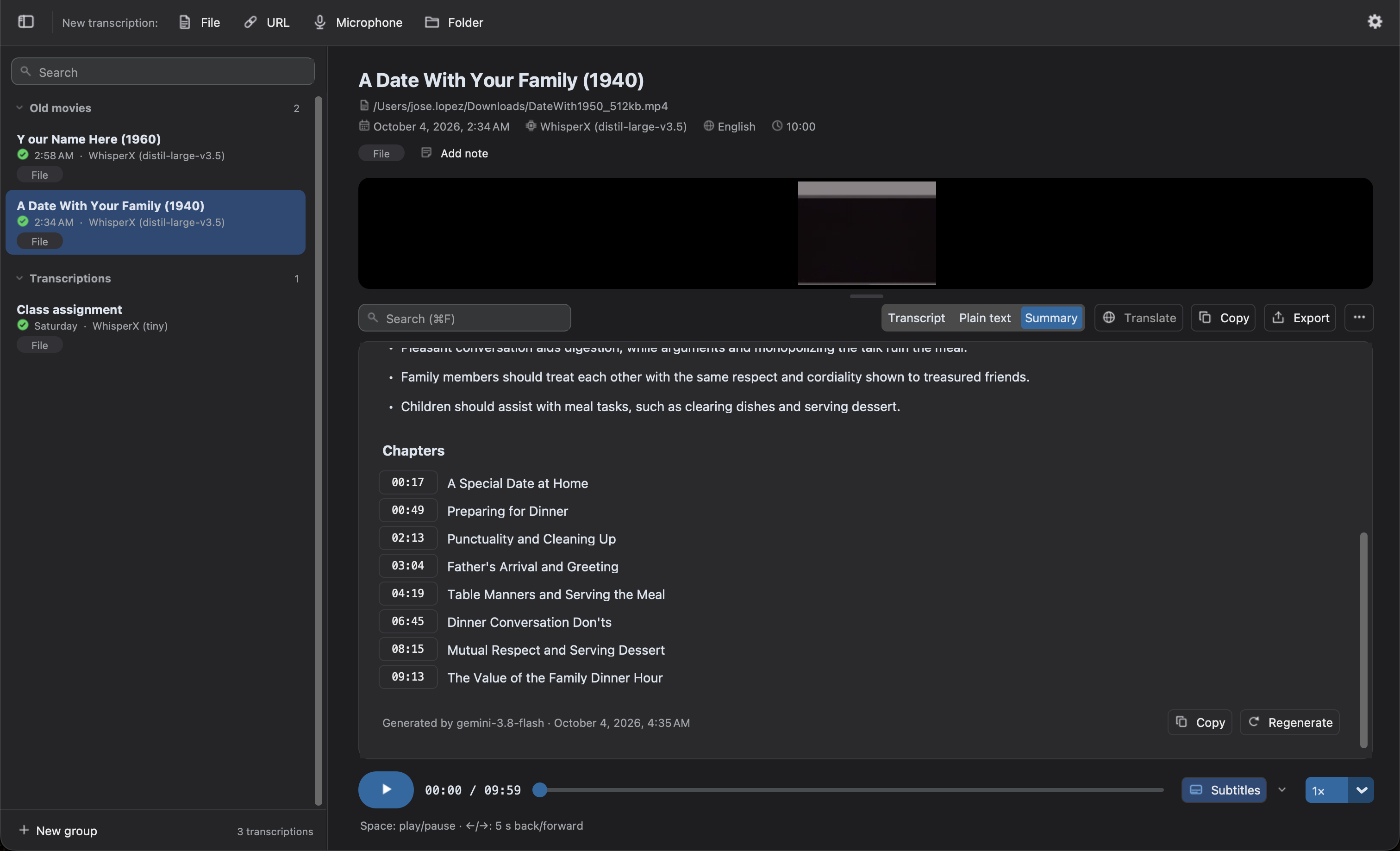
Section titled “Summary”Open the Summary mode of a transcription and click Generate summary. The language model writes:
- A summary of the transcription.
- Its key points.
- Its chapters, if it has timestamps. Click a chapter to play the audio from where it starts.
Below its title, the panel says which model generated it and when. The buttons of its header:
- Find (
Ctrl+F,⌘Fon macOS): finds a text in the summary. - Copy: copies it.
- Export: saves it by itself as plain text, Markdown or a Word document, named like
video.summary.mdso it doesn’t replace the transcription. The Markdown and Word exports of the transcription include it too. - Regenerate the summary: writes it again (e.g. after choosing another model), after asking you, since the current one is replaced.
If the API key of the provider isn’t set, the Summary mode offers to set it. Very long transcriptions (about three hours of speech or more) are summarized from their beginning only.
Ask about the transcription
Section titled “Ask about the transcription”Open the Ask mode, type a question in Ask a question about the transcription… (e.g. what was decided, or who said something) and press Enter or click Ask.
- The language model answers with the transcription, and with the previous questions and their answers, so a question can refer to them (e.g. “Why?”).
- If the transcription has timestamps, each answer links to the parts of the transcription where it’s said. Click one to play the audio from there.
- The questions and their answers are kept in the history with the transcription. The trash can of the header clears the conversation, after asking you.
The questions are answered by the provider chosen for them in Preferences → Providers → Ask, which is the one of the summaries until you change it. Like the summaries, very long transcriptions are only read from their beginning.
Translation
Section titled “Translation”Click Translate, choose the language in Translate into: and the provider in Translate with:, and confirm. The dialog says what the provider chosen does, and offers to set its API key if it’s missing. The translation is shown in a panel on the right of the original text.
- If the transcription has timestamps, it’s translated sentence by sentence, with the text said before and after each part as context, so the translation starts with the timestamps of each sentence: it highlights the sentence being played, and clicking one plays it.
- If the transcription has no timestamps, its whole text is translated at once.
- Both texts scroll together, so they show the same part of the audio. The round button on the handle between them turns it on and off. Drag the handle to resize them, or double-click it to reset their sizes.
The buttons of the header of the translation find and replace in it, copy it, export it, Translate again (with the same provider and model) and Hide the translation. The Translate button also lets you show it again, Translate into another language… or Delete the translation.
Several languages
Section titled “Several languages”A transcription can be translated into several languages, even at the same time, and each translation is kept. The title of the panel chooses the one shown, says how much of each one is translated, and ends with the option to translate into another language. Translating into a language that already has a translation replaces it, after asking you, since its corrections are lost. The menu of the title shows how many subtitles of each unfinished translation are translated (e.g. Spanish · 148/150).
Translation progress
Section titled “Translation progress”The progress is counted in subtitles: one is translated when it has a text. Above the translation, a line shows how many are translated (e.g. Translated: 148/150 · 98%). The percentage is rounded down, so 100% only shows when all of them are translated.
While some are left, the arrows next to it go to the previous and next subtitles Not translated yet, highlighting each one, and show which one you’re on (e.g. 1 of 2). Hover over one of them to show the Translate text… button on its right, which opens the dialog to translate it.
Correct and retime the translation
Section titled “Correct and retime the translation”A translation often needs another timing than the original, e.g. subtitles that take longer to read. Right-click a segment of the translation to:
- Edit text…: change its text.
- Edit the timing…: change when it starts and ends, to the millisecond. Type the times as
00:01:05,900,01:05,9or65.9. - Add a segment after…: add a segment, which by default fills the gap until the next one.
- Delete the segment.
Translate it yourself
Section titled “Translate it yourself”To write the translation yourself, choose Manual in Translate with:. It needs no API key. The translation starts with an empty segment for each subtitle of the transcription, shown as Not translated yet, and the panel shows how many are left. Right-click one and choose Translate text…: the dialog shows the original text said meanwhile. Hovering over one shows a Translate text… button on its right, which opens the same dialog.
Subtitles and export
Section titled “Subtitles and export”- In the transcriptions of videos, check Show it as the subtitles of the video in the Translate menu to show the translation as the subtitles. The menu of the video switches them too. See Watch videos with subtitles.
- To save the translation as a file, click the export button of its panel. It’s exported in the same formats as the transcription, with its language in the name of the file (e.g.
video.es.srt), so the video players load it with the video. The segments not translated yet are left out of the subtitles. The same menu makes a copy of the video with its subtitles.
Providers
Section titled “Providers”The providers are chosen in Preferences → Providers, separately for the summaries, the questions and the translations.
| Provider | Default model | API key |
|---|---|---|
| OpenAI (default) | gpt-5.4-mini |
OpenAI |
| Claude (Anthropic) | claude-haiku-4-5 |
Anthropic |
| DeepSeek | deepseek-chat |
DeepSeek |
| Gemini (Google) | gemini-3.8-flash |
Google AI Studio |
| Mistral | mistral-small-latest |
Mistral |
| Grok (xAI) | grok-4.3 |
xAI |
| Ollama (local) | llama3.2 |
Not needed |
Leave the Model empty to use the default one of the provider, or type the name of any other model of the provider (e.g. claude-sonnet-5-5 or deepseek-reasoner).
The translations can also be made by:
- DeepL, which requires a DeepL API key. The keys of the free plan work too.
- Google Translate, which uses the Google API key with the Cloud Translation API enabled.
Ollama
Section titled “Ollama”Ollama runs the models on your computer, without an API key and without sending the text anywhere. Install it, download a model (e.g. ollama pull llama3.2) and choose Ollama as the provider. If it doesn’t run on the default address, change the Server URL in Preferences → Providers (http://localhost:11434 by default).