Audio sources
Audiotext transcribes from four kinds of sources, which you choose in the top bar under New transcription.
Transcribes an audio or video file. Click Choose a file…, or drop the file on the window. The file explorer shows All supported files by default; you can show only Audio files or Video files. See Formats and languages for the supported formats.
Only one file can be added at a time. To transcribe several files, use the Folder source.
Transcribes a YouTube video or a direct link to an audio or video file (e.g. the episode of a podcast). Paste the URL (with Paste or Ctrl+V) and click Continue. The URL must start with http:// or https://.
https://youtu.be/dQw4w9WgXcQhttps://example.com/podcast/episode-12.mp3The audio is downloaded first, so it requires an Internet connection.
Microphone
Section titled “Microphone”Records your voice or a meeting and transcribes it. The recording is kept in your history, so you can play it later.
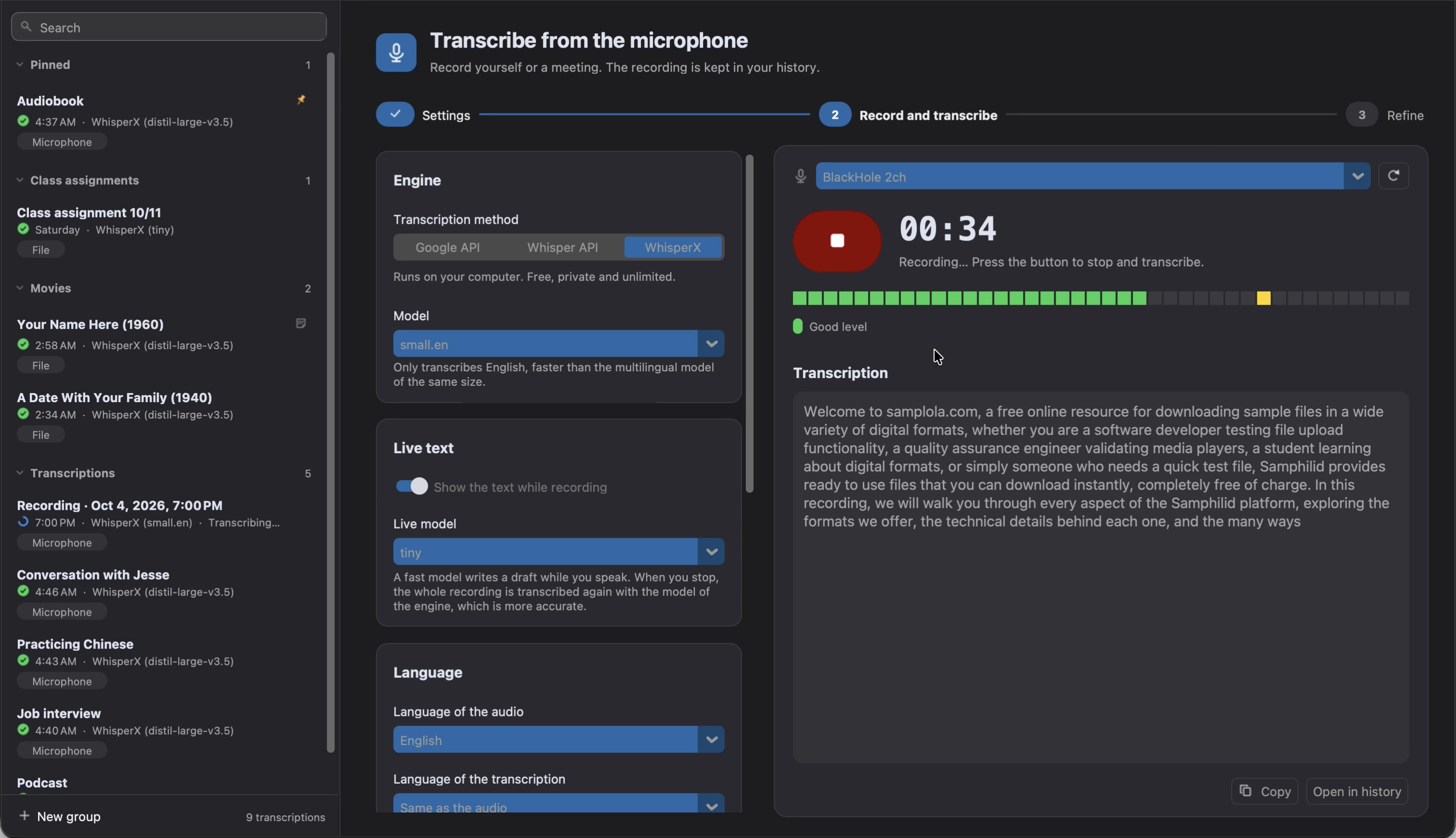
- Choose the microphone in the list (click the refresh button if you’ve just connected it).
- Click the record button (or press
Ctrl+Enter,⌘↩on macOS) to start recording. The level meter tells you if the sound is Too quiet, a Good level or Too loud. - Click it again to stop and transcribe.
Live text
Section titled “Live text”With WhisperX, turn on Show the text while recording in the Live text card to see a draft of the text as you speak. The draft is written by a fast Live model (small by default). When you stop, the whole recording is transcribed again with the model of the engine, which is more accurate, and the draft is replaced.
Record the audio of your computer
Section titled “Record the audio of your computer”To transcribe what your computer plays (a video call, a webinar, a video that can’t be downloaded), record it from a device that sends the sound of the speakers to an input. Set it up once, click the refresh button and choose it in the list of microphones. Everything the computer plays is recorded, notifications included, but not your voice.
- Windows: run
mmsys.cpland, in the Recording tab, right-click the list to show the disabled devices and enable Stereo Mix. If your sound card doesn’t have it, install VB-CABLE, make CABLE Input the output device and choose CABLE Output in Audiotext. To keep hearing the sound, check Listen to this device in the properties of CABLE Output. - macOS: install BlackHole (
brew install blackhole-2ch) and choose BlackHole 2ch in Audiotext. To keep hearing the sound, create a Multi-Output Device with your speakers and BlackHole, and make it the output device. - Linux (PulseAudio or PipeWire): choose pulse in Audiotext and start recording. Then, in the Recording tab of
pavucontrol, change the source of Audiotext to the monitor of your speakers.
Folder
Section titled “Folder”Transcribes all the audio and video files of a folder and, if Include subfolders is on in the Folder card, of its subfolders. Click Choose a folder… or drop the folder on the window. Audiotext tells you how many files it found. To leave some files out, write their names or paths, separated by commas, in Skip files matching (e.g. *.wav, drafts/*). Hidden files are always skipped.
The transcription of each file is saved next to it (or in another folder you choose in the Output card), with the same name and the extension of each file type you selected. For example, with .txt and .vtt:
files-to-transcribe├── paranoid-android.mp3├── paranoid-android.txt├── paranoid-android.vtt└── movies ├── mulholland-dr.avi ├── mulholland-dr.txt └── mulholland-dr.vttIf two files have the same name and a different extension (e.g. talk.mp3 and talk.mp4), their transcriptions keep the extension in their name (talk.mp3.txt and talk.mp4.txt), so they don’t replace each other.
Files that already have a transcription are skipped: a file is only skipped if it has all the file types you selected, so adding a file type transcribes it again. If a file can’t be transcribed, the rest of the files are still transcribed.
The files of a folder
Section titled “The files of a folder”The page of a folder in the history lists its files, with the status, duration and size of each one and a preview of its text. Search them, filter them by status (All, Done, Failed or Pending) and sort them by name, status, duration or size. Files that were moved or deleted are marked as File not found.
- Click a file to open its transcription, or click its
⋯button (or right-click it) to copy its text, open it straight into its export, summary or translation, show it in the file manager, or Re-transcribe this file. - Select several files with
Ctrl/⌘orShift, or all the files shown withCtrl+A/⌘A, to Re-transcribe them, Export… them together to a single TXT, Markdown or Word file, or Remove from history….Enteropens the selected file, andEscclears the selection. - Retry failed transcribes again the files that failed. Rescan folder transcribes only the files without a transcription, such as the new ones, and tells how many were skipped because they already had one.
- The
⋯menu of the folder can Re-transcribe all… its files, replacing their transcriptions, Export all… of them to a single file, remove the missing files from the list, and open the source folder or the folder of the saved files. - When you change the settings of the folder, the files transcribed with other settings (engine, model, language…) are listed, with a button to Re-transcribe them.
The header shows where the files are saved and links to the source folder. Edit settings changes the settings of the folder, and Save and rescan transcribes the files that are missing a transcription with them.
Watch a folder
Section titled “Watch a folder”Turn on Watch the folder in the Folder card to keep transcribing the files added to the folder (or to its subfolders) until you click Stop watching. It’s useful for the recordings of a voice recorder or a meeting tool that are copied to a folder.
- The files that the folder already contains are skipped, unless you turn on Transcribe the files already in the folder: then the ones without a transcription are transcribed first.
- A file is transcribed once it has been completely copied (when its size stops changing), so large files aren’t transcribed halfway.
- The folders that were being watched when Audiotext was closed are watched again when it opens, going on from the files they had already seen. Stopped folders can be watched again with Resume watching.
- If the folder isn’t available (e.g. it’s on a drive that isn’t connected), Audiotext waits for it instead of failing.
- To transcribe something else or record, the folder is paused (the new transcription says Starting… until it is), and watched again afterwards.
- Errors don’t stop the watcher, and the files transcribed together are notified in a single notification.
The queue
Section titled “The queue”You can set up a new transcription while another one is in progress: the button becomes Add to queue, and it starts when the current one finishes. The queued and running transcriptions are shown in the history.